Approval for Business Users
Approve documents via the web, mobile app, or email.

Written by Grainne Reidy
Updated at November 19th, 2026
Introduction
Ways to Approve
If you are an approver, you will be notified of documents awaiting approval via email or Mobile App.
There are three ways to approve a document:
- Email: Approve Orders, Invoices, and Credit Notes. See the section “Email Approval”.
- Web-based: Via the listing grid. Note, this only applies to Purchase Orders as this is the only transaction listing grid that Business Users can access in the system. See the section “Web-based Approval”.
- Mobile: Approve Orders, Invoices, and Credit Notes. See the section “Mobile App Approval”. All Workflow Approvers can use the Mobile App (iOS and Android) to approve (or reject) documents.
Permissions
Note the following:
- A user with the relevant permissions needs to set up your Workflow Approver account, including enabling your preferred notification type (email or mobile).
- If you approve via the Mobile App or email, you do not require access to a given listing grid to be able to approve or reject the related document types.
Mobile App Setup
- The Approval Workflow Administrator will send you an invite via email. Open it and click Get Started.
- Follow the onscreen instructions to download the app. The app is now ready for use and will sync any pending approvals.

Multiple Entities
If you will be approving on behalf of multiple entities, the invite process must be repeated for each entity, and you will be linked to all entities via the mobile app.
For any subsequent entities you receive invites for, click Get Started in the email invite and any outstanding approval requests will be synced to the app.
See:
▶️ Company Overview (1.2BU) - AIQ Academy
▶️ Getting Started with Purchase Orders (17.0 BU) - AIQ Academy
▶️ PO Processing Overview (17.1BU) - AIQ Academy
Email Approval
Business Users can approve Orders, Invoices, and Credit Notes by email.
If you are set up for email approval, you will receive an approval email as follows:

Click the Approve or Reject button, enter an optional note, then click Approve or Reject. This does not require logging in.
If you are unsure about whether to Approve or Reject a document, you can reject it and state your concerns in the note. All notes will appear in the notifications of other approvers in that workflow as well as the document creator.
If there are multiple approvers in a step and only one approver is required, the other approvers will be notified when they go to click on the Approve or Reject option. No action is needed on your part.

Web-based Approval
Approve in the System
If you have been set up with the restricted view option in your user account, you will only see documents sent for your approval in the Orders listing grid.
- Log into the relevant entity and go to Purchases > Orders.
- Use the Approval Status column to filter for orders that are Awaiting Approval. At every step in the approval process, the document is tagged with the relevant approval status, letting you monitor its progress. Note: Individual steps in the approval process also have statuses. For more information on statuses, see below.

- Next to the order, go to Actions > Register Approval or Rejection.

- Add a note if required and click Approve or Reject. If you are unsure about whether to Approve or Reject a document, you can reject it and state your concerns in the note. All notes will appear in the notifications of other approvers in that workflow as well as the document creator.
If there are multiple approvers in a step and only one approver is required, the other approvers will be notified when they go to click on the Approve or Reject option. No action is needed on your part.
Document Approval Status
The following is informational only. No action is required on your part as a Business User Workflow Approver. However, if you are also a Purchase Order creator Action Required and Rejected may require action from you.
| Document Status | Explanation |
|---|---|
| Approval Not Required |
Documents will not require approval if:
|
| Pending | This is the initial status and is used when a newly created document is waiting to be picked up by a workflow. |
| Action Required | Action required means a document was picked up by a workflow but either needs to be resubmitted by its creator or the workflow needs modification. |
| Admin Required | There is an error that requires the intervention of the Approval Workflow Administrator. |
| Awaiting Approval | The document is in the approval process. Use the Metro Map (see below) if you want to see the actions taken by other approvers. |
| Approved | The document is fully approved by all steps in the workflow. |
| Rejected |
When one step is rejected by an approver, the whole document is rejected. If an approver rejects a document, the creator can edit and resubmit it. |
| Cancelled | Cancelled documents will not enter a workflow. |
Steps Approval Status
To view the Approval Metro Map, click on the document status link in the grid. The Metro Map shows the status of the individual steps and details of the approvers, letting you keep up to date on the status of documents where you are the approver.

In addition, clicking on the Notes icon shows an abbreviated summary.
The following is informational only. No action is required on your part as a Business User Workflow Approver. However, if you are also a Purchase Order creator Select Approver and Rejected may require action from you.
| Step Status | Explanation |
|---|---|
| Awaiting Approval | This means that no approver has interacted with this step yet. |
| Approved |
Steps get this status when all relevant approvers have approved the step. If the step was approved by a substitute, this will be detailed along with the regular approver using ‘on behalf of’.  |
| Rejected | At least one approver has rejected this step. |
| Skipped |
The Approval Workflow will skip to the next step if:
|
| Select Approver | This status means that the document creator needs to select an approver. |
Mobile App Approval
The Mobile App allows approvers to:
- Complete the full Approval process, including review of all notes, documents, and Budgets associated with the Orders, Invoices, and Credit Notes.
- Record notes as part of the approval or rejection process explaining their decision.
Use the Mobile App
- Tap on the mobile notifications to go straight to the approval process.
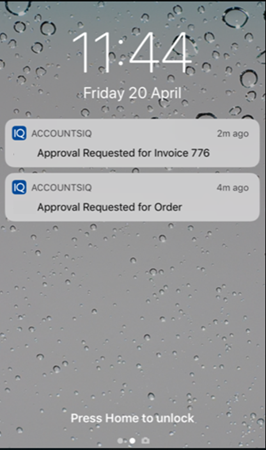
Alternatively, tap Refresh in the Mobile App to display the documents needing approval.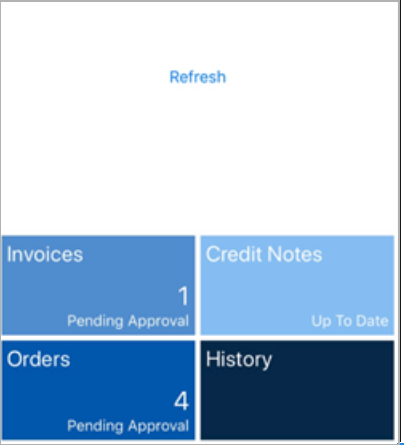
- Tap Invoices, Orders, or Credit Notes as appropriate to view outstanding transactions.

If you are approving in multiple entities, all outstanding items will appear in ascending Entity ID order.
- Select the relevant document.
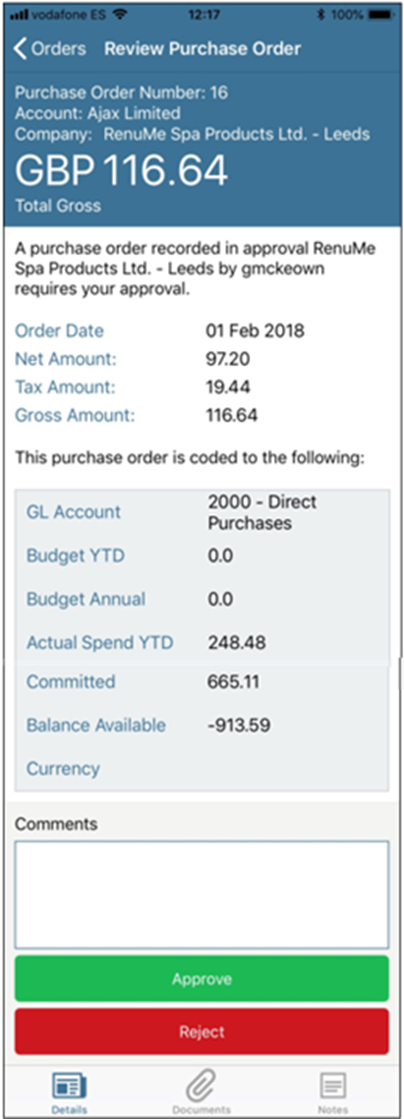
If you do not use Budgets, you will see the following: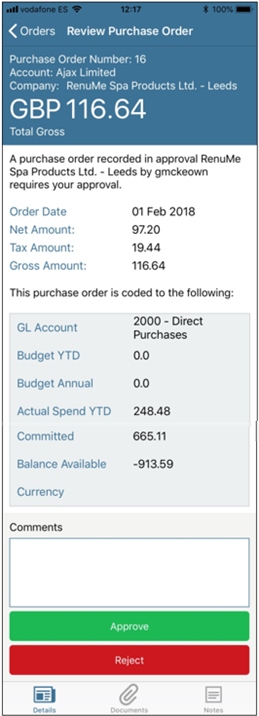
- Add comments and Approve or Reject the document. Comments are mandatory if rejecting the document. The document will move to History (see below).
If there are multiple approvers in a step and only one approver is required, the other approvers will be notified when they go to click on the Approve or Reject option. No action is needed on your part.
Mobile App Features
You can find the following icons at the bottom of the Approval/Rejection screen:
- Details
- Documents
- Notes

| Feature | About |
|---|---|
| Details | This is the main screen with all document details.
|
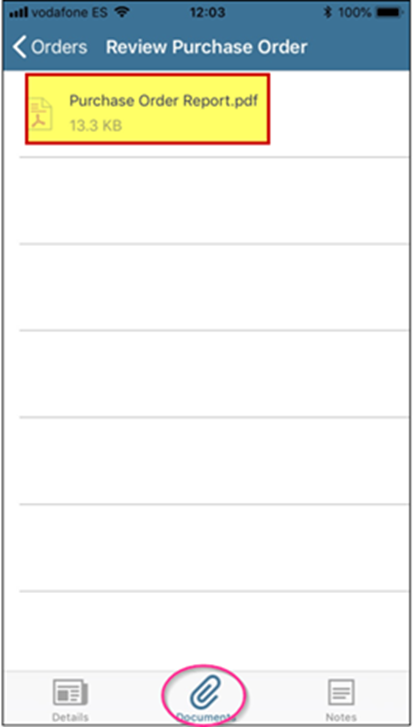
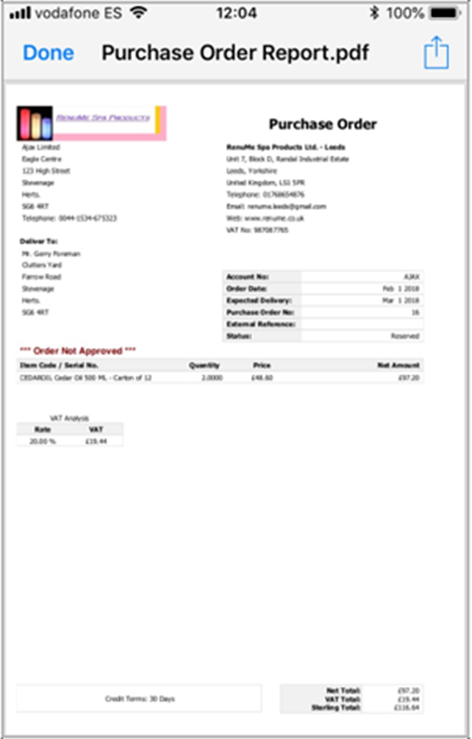
| Documents |
Tap Documents to view a PDF Report of the Order, Invoice, or Credit Note.
|
| Notes |
Tap Notes to access all notes which have previously added to the Order, Invoice, or Credit Note.
|

History
The Mobile App has a searchable audit trail of all your previous approval and rejection actions.
- Tap History from the main screen to view a searchable list of all previous approval and rejection actions.

- At the bottom of the screen, select Invoices, Credit Notes, or Orders to view a list.

- Select an entry to view a copy of the document with its PDF and Notes.
