Introduction
Info: Prerequisites
To set up an OData Connection and access the OData credentials from the Data Connection Setup page, read OData Connection Setup.
OData and Integrations
With the release of the new Dimensions module, all BI Codes are retained in any existing OData connections and integrations. Existing Power BI / OData reports will not break, and both BI Code and Dimension breakdowns are exposed.
Several different tools can be used to connect to OData, including Microsoft Excel and Power BI. We will describe how to connect via Microsoft Excel in this article, but the same steps apply to the other tools.
See:
 Using OData connector with Excel (23.4) - AIQ Academy
Use OData Connector with PowerBI (23.3) - AIQ Academy


Connecting to OData
- In Excel, open a new workbook.
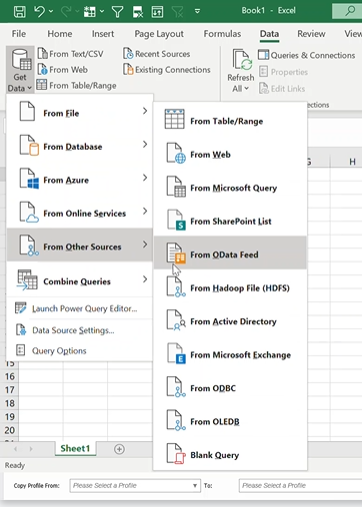
- Go to Data > Get Data > From Other Sources > From OData Feed.
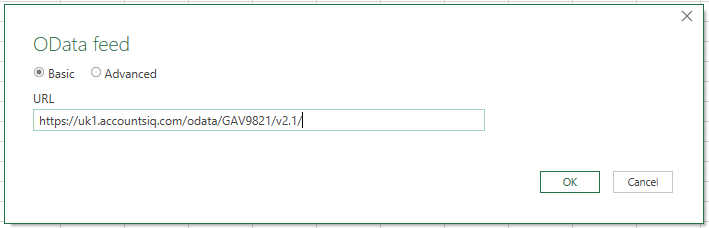
- Select Basic, enter the URL, and click OK.
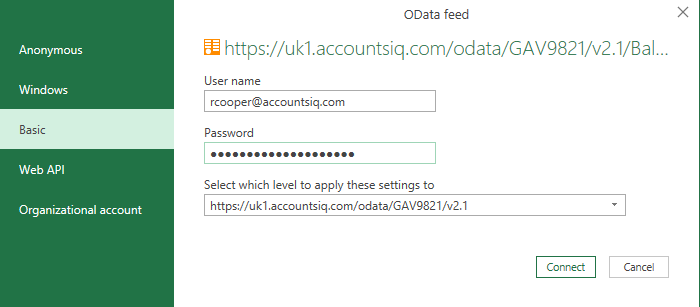
- Enter the following:
- AIQ username.
- OData Connection password that you copied from the Data Connection Setup page (NOT your AIQ system password)
- The URL from the final drop-down menu on the OData Connection Setup screen. This will help you manage multiple connections to different databases
- Click Connect.
Simple Data Queries using Excel
Now that you have created a connection, you can fetch data from the system.
There are two types of datasets available:
- Straight datasets: Examples include BI Codes and Customers below. Click these to preview the dataset.
-
Functions: Function datasets such as BalanceSheet or CustomerAgeingDetailed require you to enter additional parameters (e.g. a date) before data will load.
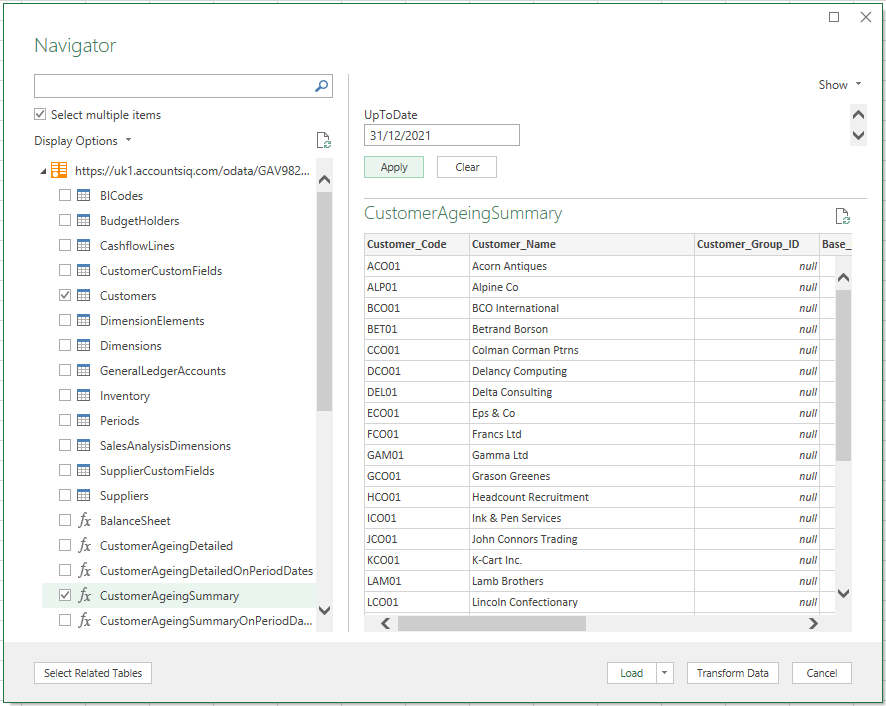
To Query a Dataset:
- Select the datasets you want to query.
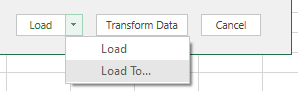
- Click Load to to select how you want to show the data in Excel.
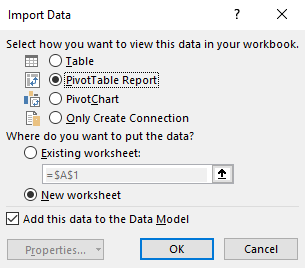
- Select PivotTable Report to load the data into an Excel Pivot Table and click OK.
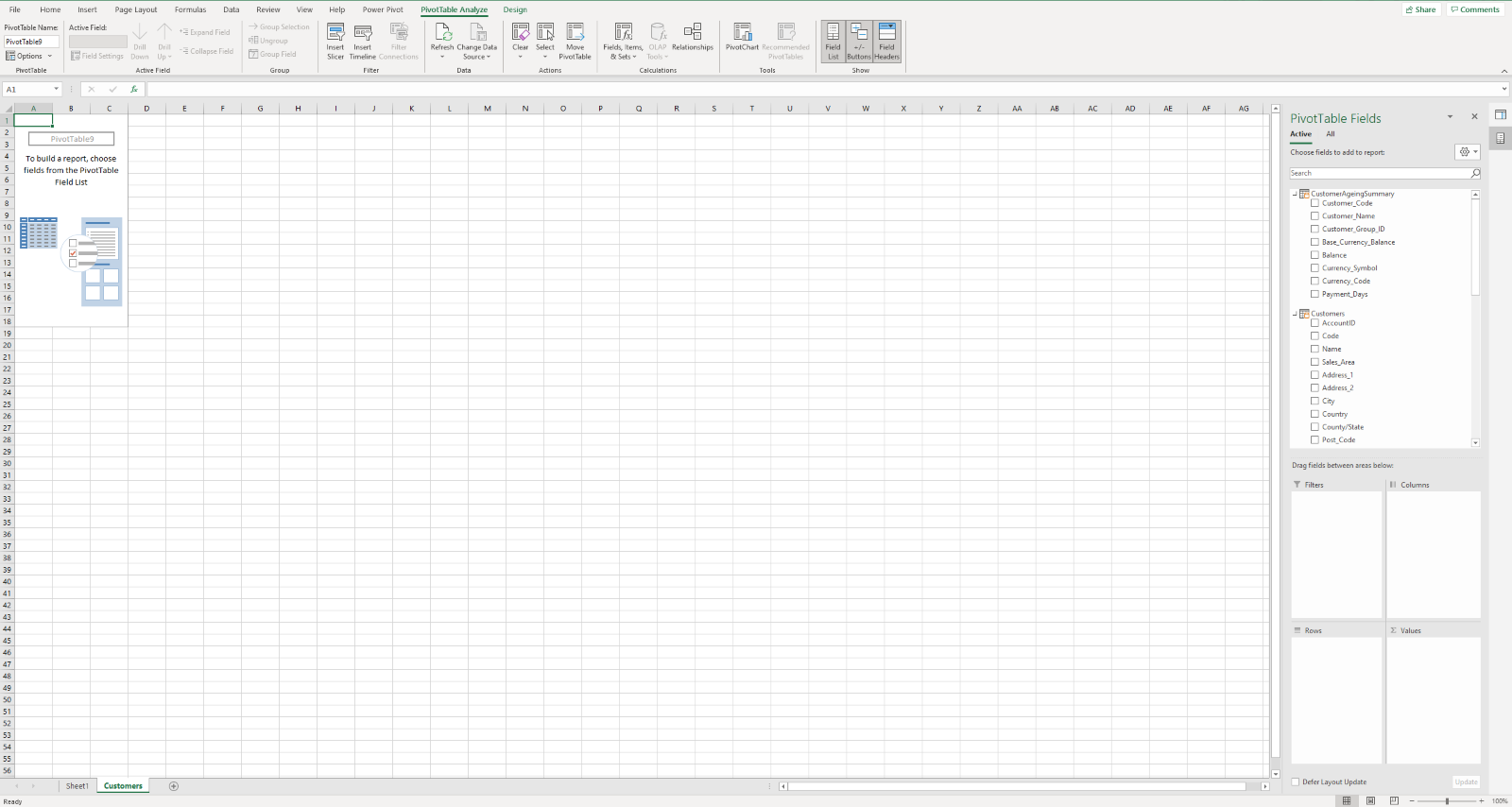
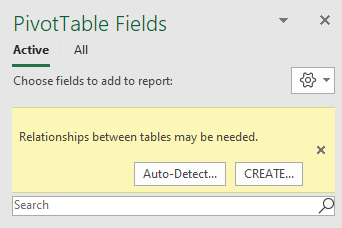
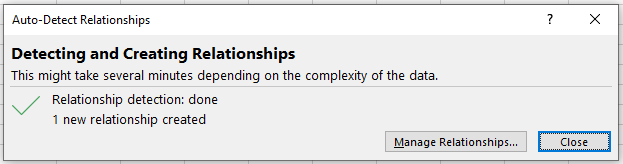
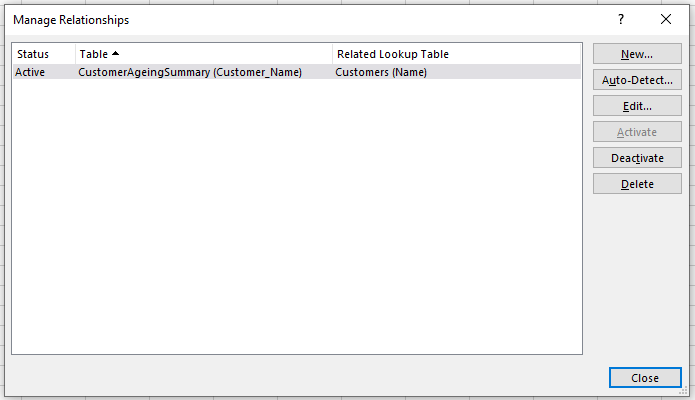
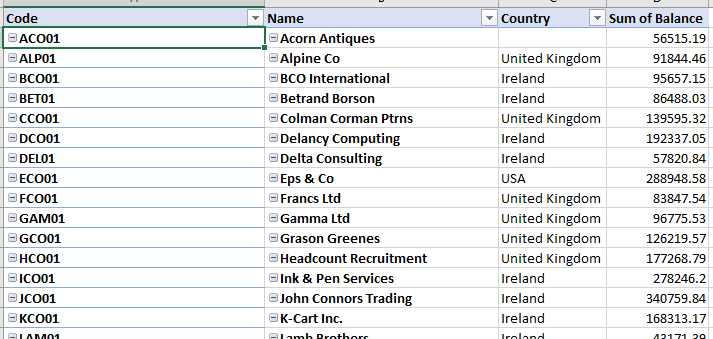
- Next, select the fields you want to display in the pivot table. If you are combining multiple datasets, you may need to join them using a relationship. Click Auto-Detect to get suggestions and Excel will then detect and create a relationship between the datasets. Alternatively, click Create to select the relationship manually.
Adding Datasets
You can add more datasets to the workbook:
- Go to Get Data > From Other Sources > From OData Feed.
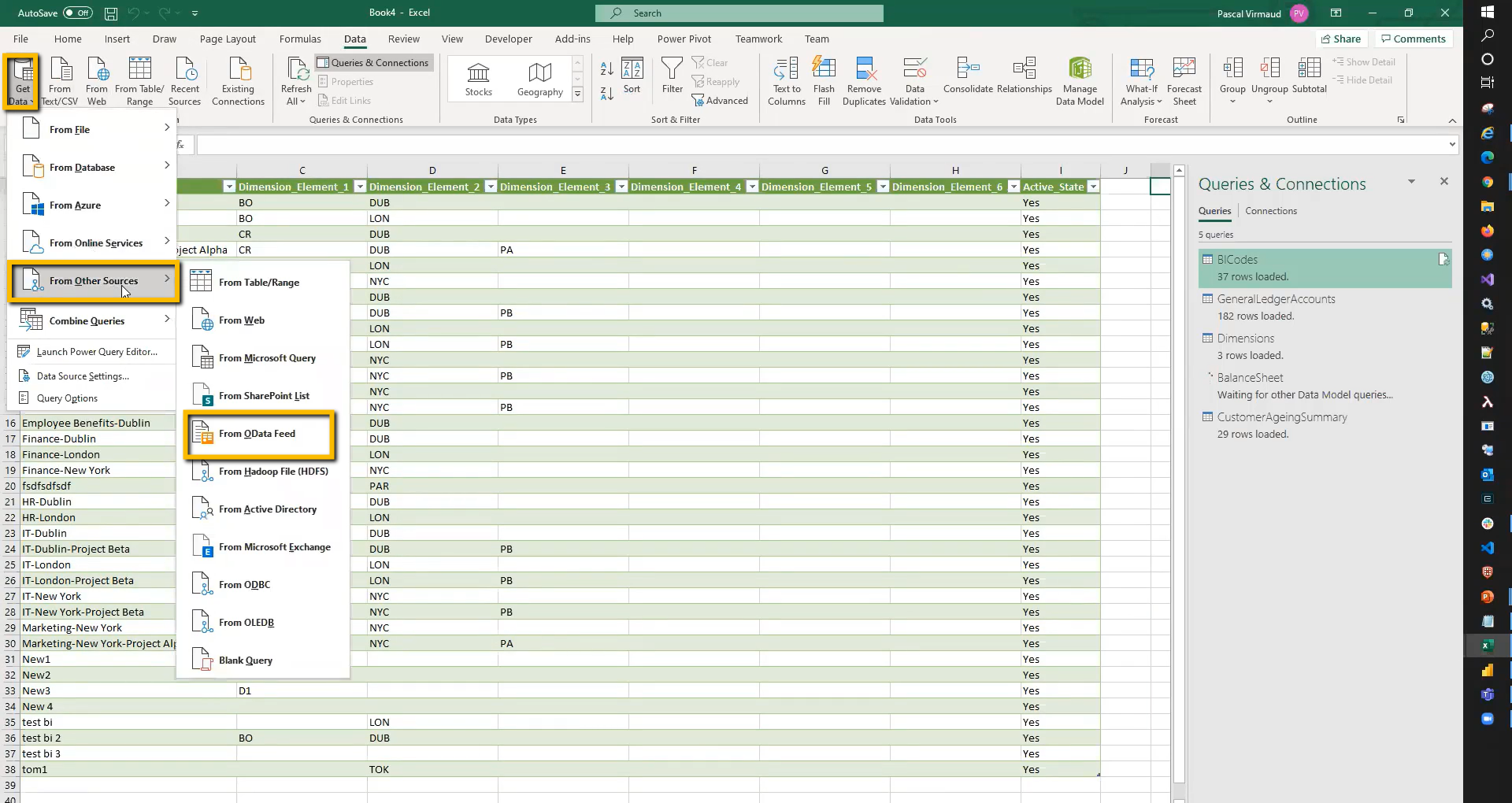
- Enter the OData URL for the company you want to extract data from. This can be the same company that you're already querying, or you can extract data from a different company by providing the URL from that company's OData Connection Setup screen.
Refreshing Queries
Refreshing Queries
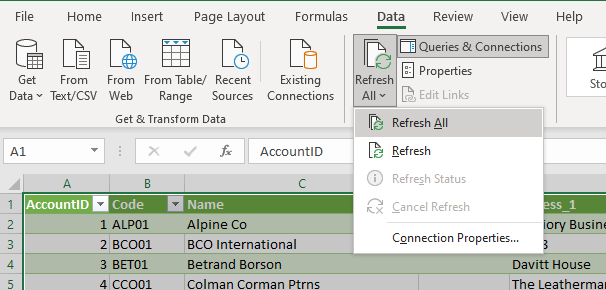
Go to Data > Queries and Connections to rename or refresh queries. Select from the list, right-click, and select the relevant option. 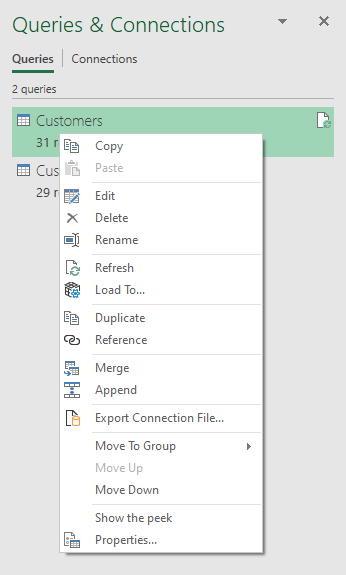
To refresh all queries at the same time, go to Data > Refresh All.