Warning! Entities with existing Transaction Data
Only proceed with importing data if you have selected the correct template and all the data included is accurate. Otherwise, you risk deleting existing data, including transactions. Retrieving deleted transaction data requires the paid service of our data team.
We strongly recommend contacting your account manager to review the implications of the data import and discuss any queries you may have.
Introduction
The Data Importer lets you populate predefined Excel templates and import them into AccountsIQ. It can clear or add to existing system data. The Import Templates are available in Office 97-2003 and Office 2007 formats.
The Data Importer can import:
- Static information such as Chart of Accounts, VAT (Tax) Codes, and Dimension Tags.
- Existing Supplier (Vendor) or Customer records for company setup, including codes, names, addresses, contacts, and bank details.
- Transactional information such as invoices or payroll journals.
Info
If you wish to use this tool, please contact your local support team. If you have not used this before you will have to undergo training and assistance to ensure you have the knowledge and skills to use the tool effectively.
Any user can have access to the data importer if their user profile is set with that permission. For more on user permissions, see Managing Group and Entity Users. User role then determines the range of available imports. Admin users have access to the full suite, while Users only have access to a subset.
The Dimension Tags importer will allow you to import Dimensions, Dimension Codes, and Dimension Tags. You can choose from two different options:
- Import Dimension Tag Structure: This completely replaces the existing Dimension Tag Structure (Dimensions, Dimension Codes, and Dimension Tags), deleting all transactions and adding a default Dimension Tag mapped to GL Codes.
- Add to Dimension Tag Structure: This adds additional Dimensions, Dimension Codes, or Dimension Tags to the existing Dimension Tag Structure, keeping all data and transactions. It can also change the default Dimension Tag mapped to GL Codes.
Guidelines for successful importing
Check database setup
Warning: Data deletion
Using the Import Dimension Tags structure template will completely remove all existing Dimensions, Dimension Codes, and or Dimension Tags and all transactions in the database.
Use separate templates for each company
You must download the Import Templates from each company individually. We do not recommend importing data using a template from a different company as this company may have a different setup.
Use newly downloaded templates each time
When adding to existing data, use a newly downloaded template to import as it will contain any changes made in the system, for example, updates to the General Ledger codes, Supplier defaults, or Customer information. Make sure you download the Import Templates from the correct database.
See:
 26.1 - Getting Started with Data Importers

 Chart of Accounts Data Importer

 Customer Data Importer
  Supplier Data Importer

 Trial Balance and Banks Importer


Downloading the Template
Groups
In the new Using Dimensions module, Dimensions and Dimension Codes are automatically managed at group level. Therefore download and import the template in the group consolidation entity first. This way any new Dimensions and Dimension Codes will be available if you import Dimension Tags into subsidiaries.
See: Using Multi-Company Consolidation and Using Dimensions.
When completing a worksheet, always read the instructions provided in each worksheet.
- Go to Setup > Data Importer > Start > Dimension Tags.

- Click Next for either:
- Import Dimension Tag Structure: This completely replaces the existing Dimension Tag Structure (Dimensions, Dimension Codes, and Dimension Tags), deleting all transactions and adding a default Dimension Tag mapped to GL Codes.
-
Add to Dimension Tag Structure: This adds additional Dimensions, Dimension Codes, or Dimension Tags to the existing Dimension Tag Structure, keeping all data and transactions. It can also change the default Dimension Tag mapped to GL Codes.

- Click the download link and save the file as a Microsoft Excel Macro-enabled file (.xlsm format).

- Open the file. If Macros are not enabled, click Enable Content.

- Fill in the required fields, following the Guidelines for Data Entry, below. Both template types contain the same worksheets. For details on each worksheet, see the relevant section below:
- Dimensions
- Dimension Tags
- Dimension Tag to GL Mapping (optional)
- Save the file.
Mandatory fields are marked with an asterisk (*) on the column header, all other fields can be left blank.
If you only want to import one type of data (i.e., Dimension, Dimension Codes, or Dimension Tag) then leave all the other sheets blank.
Guidelines for Data Entry
Follow these guidelines before you import the data. The data must be prepared appropriately before attempting to import.
General:
- The import tool cannot accept data prepared from any other workbook format. It must be downloaded from the Setup > Data Importer.
- Download the template from the entity that you want to import data into.
- Complete each field according to any requirements provided in the worksheet.
- Do not change worksheet names.
- Do not add or delete any columns in the existing worksheets.
- Do not leave any mandatory columns or rows blank.
- Where there are dropdowns, always select an option.
Formatting non-numerical data:
- Save non-numerical data according to the requirements example, for example, save dates using the date format.
- Ensure that dates are valid.
Formatting numerical data:
- Use the ‘Paste Values’ option when pasting data into the template. This will eliminate any formulas used to calculate those values.
- For negative financial figures, use a minus sign.
- Values must be two decimals. Round the values to two decimals before pasting them into the template (use the =ROUND () Excel formula).
- Ensure that there are no totals added to the bottom of any worksheet.
- Ensure that the financial information is accurate.
Dimensions Template
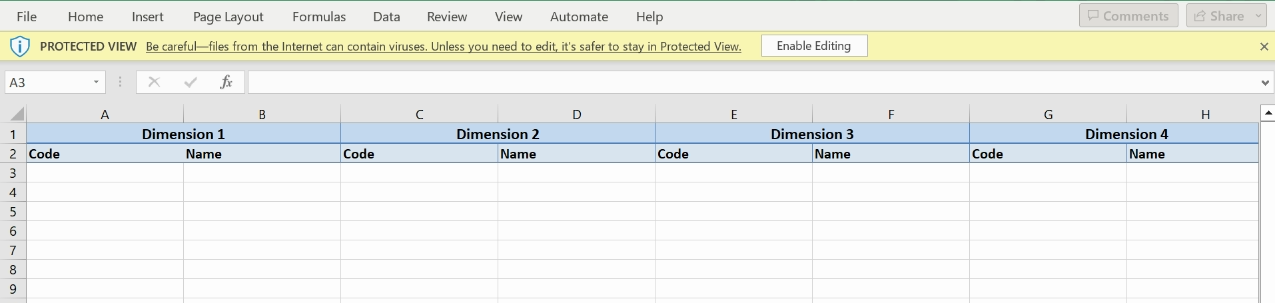
Enter new dimension names in the headers and add as many Dimension Codes and Names as required. Special characters are allowed. Leave any unrequired columns blank.
Although you can create up to six Dimensions, we recommend creating fewer so that you can grow your coding system later.
Dimension Tags Template

Fields marked with an asterisk (*) on the column header are mandatory.
Dimension Tags can be used to analyze information about the transactions entered into a company. They can be considered the 'Cost Centres' of the company and are relevant for Management Accounting.
- Dimension Tag: The Dimension Tag can be made up of its Dimension Codes separated by a dash, or according to your own coding needs. Special characters are allowed. Dimension Tag cannot be edited once imported but the Dimension Codes associated with them can be changed. They can only be deleted in the system if there are no associated transactions. If there are associated transactions, they can be deactivated instead.
- Dimension Tags
- Description: Populate with Dimension Tag descriptions. They can be edited once they have been imported into the system.
- Active: Select either yes or no.
- Dimensions 1-6: Populate with the relevant Dimensions if you are using them in the Dimension Tags
- . You can select both from those already in the system as well as those you entered in the Dimensions worksheet.
GL to Dimension Tag Mapping Template

This worksheet is optional. The Dimension Tag to GL Code mapping worksheet allows you to enforce Dimension Tag use for transactions. The GL Account Code and GL Account Name columns will already be filled with existing GL Codes if present.
- In the Require Dimension Tag (optional) dropdown, select yes or no. We recommend selecting yes only for P&L accounts.
- You have the option to enter a default Dimension Tag for the GL account codes entered in the previous column. We recommend leaving this blank unless you are certain that the same Dimension Tag should always be used.
Import the Template
Step One: Import the Data File
Info: Group Companies
In the new Dimensions module, Dimensions and Dimension Codes are automatically managed at group level. Therefore, import the completed template into the consolidation entity first. Then create copies of the template for each entity you want to have the Dimension Tags. For each of these templates, delete the Dimension Codes you added in the Dimensions worksheet as well as any unneeded Dimension Tags in the Dimension Tags worksheet.
See: Using Multi-Company Consolidation and Using Dimensions.
- Go to Setup > Data Importer > Start > Dimension Tags.
- Click Next for the relevant option.
- Click Browse to find your saved template.

- Click Import.
Step Two: Validation
The import file will be validated.
- If there are any errors, an error message will appear, along with an error file. Download this file. It includes a new sheet, Import Errors, and a copy of the import file. This shows a summary of all errors found during validation, together with a link to the fields causing the error and the actual error message.
- Click on each link to see details of the error, cells causing the error will be highlighted in red with a note showing further details (hover over the highlighted cell to see the detailed message).
- Correct all errors and re-import the file as described in step two above. You can make corrections directly in the error file.
Import Dimension Tag Structure Template
If no errors are found with the imported file, the system will give you a final warning that the data is about to be deleted. This means that data will be permanently deleted, please note there is no backup taken, you should only proceed with this option if you are happy to delete the following:
- All Transactions
- Dimensions
- Dimension Codes
- Dimension Tags
Next you will be asked to either enter your login details or, if you use SSO, follow the process outlined here:
- Click Verify Identity.

- Enter the OTP that was sent to your email and click Submit.

- Click Continue to confirm the import.
Step Three: Check the Imported Data in the system.
You will receive a confirmation message if the import is successful. Close the importer and check the imported Dimension Tags in the system. (Dimension Tags can be checked from Setup > Dimension Tags or from Reports > GL > Dimension Structure).
FAQs
I can't see the notes in the error file.
You can control the appearance of notes in Excel:
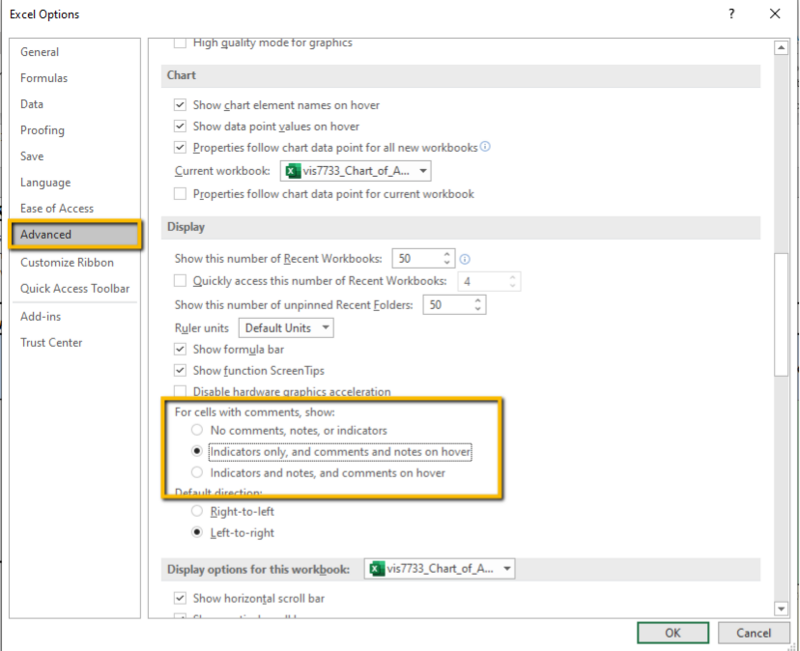
- Go to File > Options > Advanced.
- Scroll down to the display settings. We recommend you select the Indicators only, and comments and notes on hover option. This lets you see detailed notes on errors when you hover over highlighted cells.